
Best Home Office Setup for Remote Work in 2026: 15 Essentials
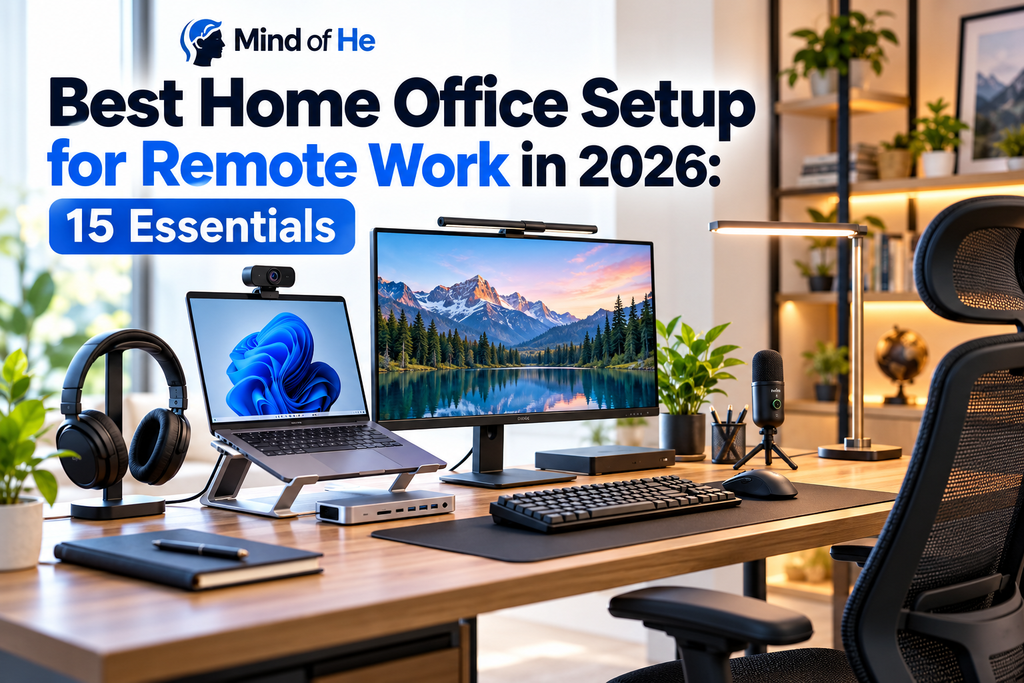
Finding the best home office setup for remote work doesn’t have to be expensive or complicated. The right combination of equipment can make it easier to stay comfortable, communicate clearly, stay organized, and get more done throughout your workday.
Table of Contents
You don’t need an expensive desk covered with gadgets. A good home office setup should make it easier to focus, communicate, stay comfortable, and get through your workday without constantly fighting with your equipment.
Whether you’re working remotely full-time, running a small business, freelancing, studying, or building a side hustle, the right combination of equipment can make a noticeable difference.
In this guide, we’ll look at 15 essential home office items for remote work in 2026, from monitors and keyboards to webcams, chairs, lighting, and cable management.
We’ll also explain what is worth spending more money on and where you can save.
Affiliate Disclosure: This article contains affiliate links. If you purchase a product through one of our links, we may earn a commission at no additional cost to you. Our recommendations are based on usefulness, features, and value.
What Makes the Best Home Office Setup for Remote Work?
A good home office setup should accomplish four things:
- Make your work more comfortable
- Help you stay organized
- Improve productivity
- Make video meetings and communication easier
You don’t necessarily need every item on this list.
Start with the equipment that solves your biggest problem and upgrade gradually.
Quick Comparison: Home Office Essentials
| Home Office Essential | Best For | Priority | What to Look For |
|---|---|---|---|
| Laptop | Main computer | Essential | Performance, battery life, portability |
| Monitor | More screen space | High | IPS, resolution, size, connectivity |
| Keyboard | Comfortable typing | High | Ergonomics, layout, wireless options |
| Mouse | Navigation | High | Comfort, sensor, battery life |
| Webcam | Video meetings | Medium | 1080p or better, autofocus, privacy |
| Headset | Calls and meetings | Medium | Microphone quality, comfort |
| USB-C Hub/Dock | Connectivity | High | Ports, display support, charging |
| Desk | Workspace | Essential | Size, stability, cable management |
| Office Chair | Comfort | Essential | Adjustability and lumbar support |
| Desk Lamp | Better lighting | Medium | Adjustable brightness and color |
| Laptop Stand | Better positioning | Medium | Height and stability |
| Microphone | Better audio | Optional | USB connectivity and sound quality |
| Monitor Arm | Desk organization | Optional | VESA compatibility and adjustability |
| Cable Management | Organization | Medium | Clips, sleeves and cable trays |
| Surge Protector | Power protection | High | Safety features and enough outlets |
1. Laptop
Your laptop is the foundation of your remote-work setup.
If you’re working with documents, web applications, email, video calls, spreadsheets, and general productivity software, you don’t necessarily need the most powerful laptop available.
For most office users, prioritize:
- A modern processor
- At least 16GB of RAM if your budget allows
- An SSD
- Good battery life
- A comfortable keyboard
- A good-quality display
- USB-C connectivity
- Reliable Wi-Fi
If you’re buying a new laptop specifically for remote work, consider how long you expect to keep it. Spending slightly more on a better configuration can be worthwhile if it prevents you from needing another upgrade soon.
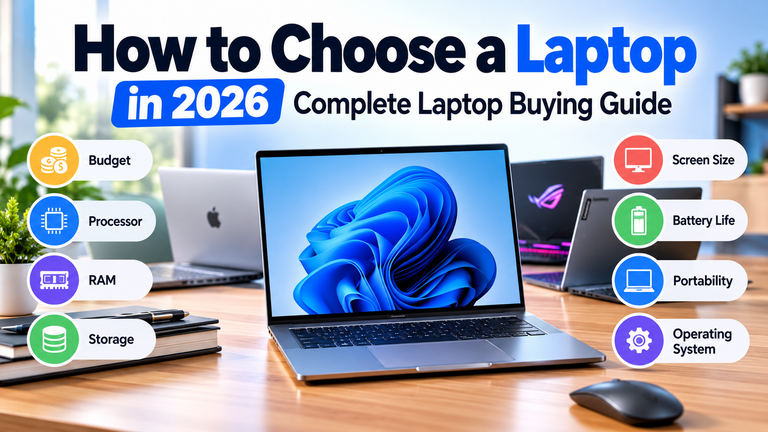
Already shopping for a laptop? Check out our complete guide:
How to Choose a Laptop in 2026: Complete Laptop Buying Guide
Amazon Tip
Before buying, compare several configurations rather than automatically choosing the most expensive model.
→ Check the latest laptop options on Amazon
2. External Monitor
A second screen is one of the most useful upgrades for a home office.
Instead of constantly switching between browser tabs and applications, you can keep your email, documents, spreadsheets, research, or communication tools visible at the same time.
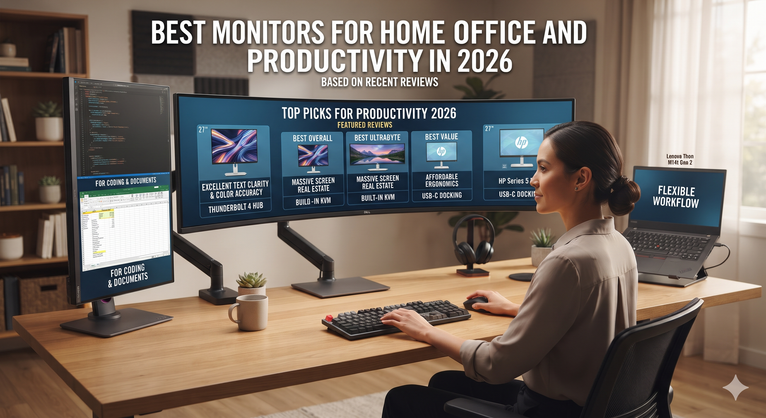
For general office work, a 24- to 27-inch monitor is a practical starting point.
Look for:
- IPS panel
- Full HD or higher resolution
- Adjustable stand
- HDMI or DisplayPort
- USB-C if you want simpler laptop connectivity
- VESA support if you plan to use a monitor arm
If you regularly work with large spreadsheets, creative applications, or multiple windows, a larger or higher-resolution display may be worth considering.
→ Check home office monitors on Amazon
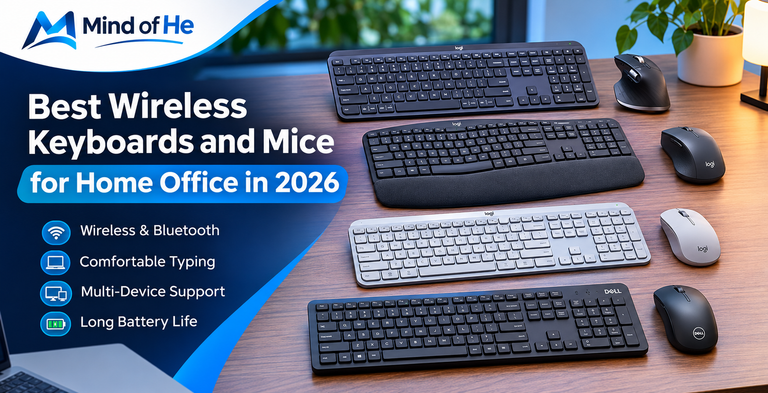
3. Ergonomic Keyboard
A keyboard is easy to overlook because almost every laptop already includes one.
But if you type for several hours every day, a dedicated keyboard can make your workspace more comfortable.
Consider:
- Full-size vs compact layout
- Wireless vs wired connection
- Low-profile vs mechanical keys
- Wrist comfort
- Multi-device support
- Windows/macOS compatibility
You don’t have to spend a lot. The best keyboard is the one that feels comfortable during long typing sessions.
→ Browse wireless and ergonomic keyboards on Amazon
4. Comfortable Mouse
A good mouse can make everyday computer work much easier.
Look for a shape that fits your hand and features that match your workflow.
Useful features include:
- Wireless connectivity
- Adjustable or reliable tracking
- Quiet clicks
- Programmable buttons
- Long battery life
- Bluetooth or USB receiver support
If you spend most of your day moving between documents, browser tabs, and applications, comfort should matter more than flashy features.
→ Check popular wireless mice on Amazon
5. Webcam
Your laptop’s built-in webcam may be enough for occasional meetings.
However, if you’re regularly attending video conferences, talking to clients, interviewing, teaching, or creating content, a dedicated webcam can provide a noticeable upgrade.
Look for:
- 1080p resolution or better
- Autofocus
- Good performance in indoor lighting
- A privacy shutter or cover
- USB connectivity
- A flexible mounting system
You don’t necessarily need a 4K webcam for normal work meetings.
A good 1080p webcam can be more than enough for most remote workers.
→ Compare popular webcams on Amazon
6. Headset or Headphones
A headset can be particularly useful if you work in a shared home or regularly attend meetings.
A good headset should provide:
- Comfortable ear cushions
- Clear microphone audio
- Good noise isolation
- Reliable connectivity
- Comfortable fit for long sessions
If microphone quality is important, check whether the headset has a dedicated boom microphone rather than relying entirely on built-in microphones.
For people who don’t need a microphone, comfortable headphones can also work well.
→ Browse headsets for remote work on Amazon
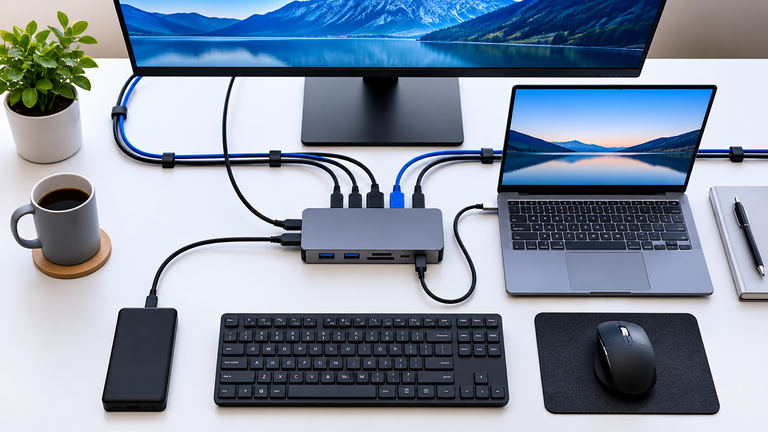
7. USB-C Hub or Docking Station
Modern laptops often have fewer ports than older computers.
That’s where a USB-C hub or docking station becomes useful.
Depending on your laptop, you may want:
- HDMI
- DisplayPort
- USB-A
- USB-C
- Ethernet
- SD card reader
- Headphone connection
- Power delivery
A simple USB-C hub may be enough for occasional use.
If you’re building a permanent workstation with multiple displays and accessories, a more capable docking station may make more sense.
Important: Check your laptop’s USB-C capabilities before buying. Not every USB-C port supports video output or the same charging standards.
→ Compare USB-C hubs and docking stations on Amazon
8. Desk
Your desk doesn’t need to look like a professional studio.
It needs to provide enough space for your laptop, monitor, keyboard, mouse, and other equipment without becoming cluttered.
Before buying a desk, measure your available space.
Consider:
- Width
- Depth
- Height
- Stability
- Cable management
- Storage
- Monitor placement
A desk that’s too small can quickly become frustrating.
A desk that’s unnecessarily large can consume valuable space in a small room.
→ Browse home office desks on Amazon
9. Ergonomic Office Chair
If you spend several hours working at your desk, the chair is one of the areas where you should think carefully before buying.
Instead of focusing only on appearance, look for adjustability.
Useful features include:
- Adjustable seat height
- Lumbar support
- Adjustable armrests
- Backrest adjustment
- Breathable material
- Stable base
- Comfortable seat cushion
A chair that works well for one person may not work well for another.
If possible, pay attention to the chair’s dimensions and adjustability rather than simply choosing the chair with the highest rating.
→ Compare ergonomic office chairs on Amazon
10. Desk Lamp
Good lighting can make a workspace more comfortable, particularly if you’re working early in the morning or late at night.
A desk lamp with adjustable brightness gives you more control over your workspace.
Useful features include:
- Adjustable brightness
- Adjustable color temperature
- Flexible arm
- Small footprint
- Touch controls
- USB power
If you regularly participate in video meetings, positioning your light in front of you can also improve how your camera image looks.
→ Browse adjustable desk lamps on Amazon
11. Laptop Stand
A laptop stand is a simple upgrade that can change your desk setup significantly.
Instead of looking downward at your laptop screen, raising the display can help create a more comfortable viewing position.
A stand is particularly useful when you’re using a laptop together with an external keyboard and mouse.
Look for:
- Stable construction
- Adjustable height if needed
- Good ventilation
- Compatibility with your laptop size
- Foldability if you travel
→ Check laptop stands on Amazon
12. External Microphone
Most remote workers don’t need a dedicated microphone.
But if your work involves:
- Frequent presentations
- Podcasts
- Online teaching
- YouTube
- Client calls
- Voice recording
- Content creation
then a dedicated USB microphone can be a worthwhile upgrade.
For general users, simplicity matters.
A USB microphone is usually easier to set up than a more complicated professional audio system.
→ Browse USB microphones on Amazon
13. Monitor Arm
A monitor arm isn’t essential, but it can make a desk look cleaner and give you more flexibility.
A good monitor arm can allow you to adjust:
- Height
- Viewing angle
- Distance
- Rotation
It can also free up some desk space.
Before purchasing one, check your monitor’s VESA mounting compatibility and the arm’s supported weight range.
→ Browse monitor arms on Amazon
14. Cable Management
Cable clutter can make even an expensive home office look messy.
Fortunately, cable management is inexpensive.
Useful products include:
- Cable clips
- Cable sleeves
- Under-desk cable trays
- Velcro cable ties
- Adhesive cable holders
- Cable boxes
You don’t need an elaborate system.
Start by separating power cables from your computer and accessory cables, then route them toward the back or underside of your desk.
→ Check cable management accessories on Amazon
15. Surge Protector or Power Strip
Your home office may contain several devices:
- Laptop charger
- Monitor
- Desk lamp
- Speakers
- Phone charger
- Docking station
- Printer
- Other accessories
A quality power strip can keep everything organized.
When choosing one, look for:
- Adequate outlet count
- Appropriate power rating
- Safety certifications applicable to your region
- Surge protection where appropriate
- Sufficient cable length
Avoid buying an unknown low-quality power strip simply because it is cheap.
→ Compare power strips and surge protectors on Amazon
How Much Should a Home Office Setup Cost?
You don’t need to buy everything at once.
A sensible approach is to build your workspace in stages.
Budget Home Office Setup
Start with:
- Existing laptop
- Basic desk
- Comfortable chair
- Keyboard
- Mouse
- Basic lighting
- Laptop stand
This can provide a functional workspace without a huge upfront investment.
Mid-Range Home Office Setup
Add:
- 24- or 27-inch monitor
- Better keyboard and mouse
- Webcam
- Headset
- USB-C hub
- Improved lighting
- Cable management
This is likely the sweet spot for many remote workers.
Premium Home Office Setup
A higher-end setup might include:
- High-quality laptop
- Large or high-resolution monitor
- Premium ergonomic chair
- Mechanical or ergonomic keyboard
- Advanced mouse
- Docking station
- Dedicated microphone
- Monitor arm
- Professional lighting
- Cable-management system
The important thing is not to buy premium equipment simply because it is expensive.
Buy premium equipment where you’ll actually notice the difference.
What Should You Buy First?
If you’re building a home office setup for remote work from scratch, prioritize your purchases in this order:
1. Chair
You’ll use it every day, so comfort matters.
2. Desk
You need a stable workspace before adding accessories.
3. Monitor
A second display can significantly improve multitasking.
4. Keyboard and Mouse
These are among the most frequently used accessories.
5. Lighting
Good lighting improves the overall workspace.
6. Webcam and Headset
Prioritize these if you regularly attend meetings.
7. USB-C Hub or Dock
Useful once you have several devices to connect.
8. Accessories
Add monitor arms, cable management, microphones and other upgrades based on your actual needs.
How to Choose the Right Home Office Equipment
Don’t choose products based only on popularity.
Instead, ask yourself:
How many hours do I work at my desk?
If you’re working eight hours a day, comfort deserves a higher priority.
Do I use multiple applications?
If you’re constantly switching between windows, an external monitor may provide more value than a premium keyboard.
Do I attend many video meetings?
Prioritize your webcam, microphone, lighting and headset.
Do I travel frequently?
Choose compact, portable accessories instead of a permanent desktop setup.
Do I use a Mac or Windows laptop?
Check compatibility before buying docks, keyboards and other accessories.
Do I have limited desk space?
A monitor arm, compact keyboard and laptop stand can help you make better use of a small workspace.
Common Home Office Setup Mistakes
Buying Too Many Gadgets
It’s easy to turn a desk into a collection of gadgets.
Don’t.
Every item should solve a problem.
Choosing Looks Over Comfort
A beautiful chair isn’t useful if you can’t sit comfortably in it for several hours.
Buying an Oversized Desk
Measure your room before purchasing.
Ignoring Cable Management
A few inexpensive cable-management accessories can make a big difference.
Buying the Wrong Dock
Check your laptop’s ports and display capabilities before purchasing a docking station.
Spending Too Much on Your First Setup
You don’t need a premium setup immediately.
Start with the essentials and upgrade based on what actually bothers you.
Best Home Office Setup for Different Types of Workers
For Remote Employees
Prioritize:
- Monitor
- Comfortable chair
- Keyboard and mouse
- Webcam
- Headset
- Docking station
For Freelancers
Prioritize:
- Laptop
- Monitor
- Keyboard and mouse
- Webcam
- Microphone
- Good lighting
- Comfortable chair
For Content Creators
Prioritize:
- Powerful computer
- High-quality monitor
- Microphone
- Webcam or camera
- Lighting
- Fast storage
- Comfortable workspace
For Students
Prioritize:
- Laptop
- Monitor if needed
- Comfortable chair
- Desk
- Keyboard and mouse
- Good lighting
Is a Second Monitor Worth It for Remote Work?
For many people, yes.
A second monitor can make it easier to keep two applications visible simultaneously.
For example, you could have:
- Video meeting on one screen
- Notes on another
Or:
- Research on one screen
- Document on another
Or:
- Spreadsheet on one screen
- Browser and email on another
You don’t need two expensive monitors.
A single good external monitor can already make a major difference.
Should You Buy a Standing Desk?
A standing desk can be useful if you prefer changing positions throughout the workday.
However, you don’t need one to create an effective home office.
If your budget is limited, spend first on the fundamentals:
chair → desk → monitor → keyboard/mouse
Then consider a standing desk or desk converter as an upgrade.
How to Build a Home Office on a Budget
If your budget is limited, don’t try to buy everything at once.
Use this approach:
Phase 1 — Essentials
- Existing laptop
- Desk
- Chair
- Mouse
- Keyboard
Phase 2 — Productivity
- Monitor
- Laptop stand
- USB-C hub
- Better lighting
Phase 3 — Communication
- Webcam
- Headset
- Microphone
Phase 4 — Organization
- Monitor arm
- Cable management
- Storage
- Desk accessories
This approach lets you improve your workspace gradually without spending hundreds or thousands of dollars immediately.
Our Recommended Home Office Strategy
If we had to build a home office from scratch, we wouldn’t start by buying every gadget available.
We’d focus on the things that have the biggest impact:
1. Comfortable chair
2. Stable desk
3. Good external monitor
4. Comfortable keyboard and mouse
5. Proper lighting
6. Webcam and headset if needed
7. USB-C hub or docking station
8. Cable management
Everything else should depend on your particular workflow.
Frequently Asked Questions
What is the most important item in a home office?
For people who work several hours a day, a comfortable and adjustable chair is one of the most important purchases. Your desk, monitor and computer are also essential.
Do I need two monitors for remote work?
No. One good external monitor can be enough for most people. A second display becomes useful when you regularly work with multiple applications or large amounts of information.
Is a 27-inch monitor good for a home office?
A 27-inch monitor is a popular size because it provides more workspace than a small laptop display without requiring an extremely large desk.
Do I need an expensive office chair?
Not necessarily. Focus on adjustability, fit, stability and comfort rather than price alone.
Is a webcam necessary for remote work?
Not always. If your laptop has a decent built-in camera and you only occasionally attend meetings, you may not need one. Frequent video-call users may benefit from a dedicated webcam.
Is a USB-C docking station worth it?
It can be very useful if your laptop has limited ports and you regularly connect a monitor, keyboard, mouse, Ethernet or other accessories.
How much should I spend on a home office?
There is no single correct amount. Start with the equipment you need most and upgrade gradually instead of buying everything at once.
What should I buy first for a home office?
Start with the basics: a suitable desk, comfortable chair, computer and the accessories you use every day. Then add a monitor and other equipment according to your workflow.
Final Verdict: Build the Office You Actually Need
The best home office setup isn’t necessarily the most expensive one.
A productive workspace comes from choosing equipment that solves real problems.
If you’re starting from scratch, prioritize:
Chair → Desk → Monitor → Keyboard & Mouse → Lighting → Webcam/Headset → Dock → Accessories
Don’t feel pressured to buy everything immediately.
Start with the essentials, use your workspace for a few weeks, and then identify what is actually slowing you down.
That’s the best way to build a home office that is comfortable, productive and worth the money.
Ready to Upgrade Your Home Office?
You don’t need to replace everything at once.
Start with the item that would make the biggest difference to your current setup, compare a few options, and choose the one that fits your budget and workflow.
→ Check the latest home office equipment on Amazon
Prices, availability, specifications and promotions can change. Always check the current product listing before purchasing.
One Comment