Best Monitors for Home Office and Productivity in 2026
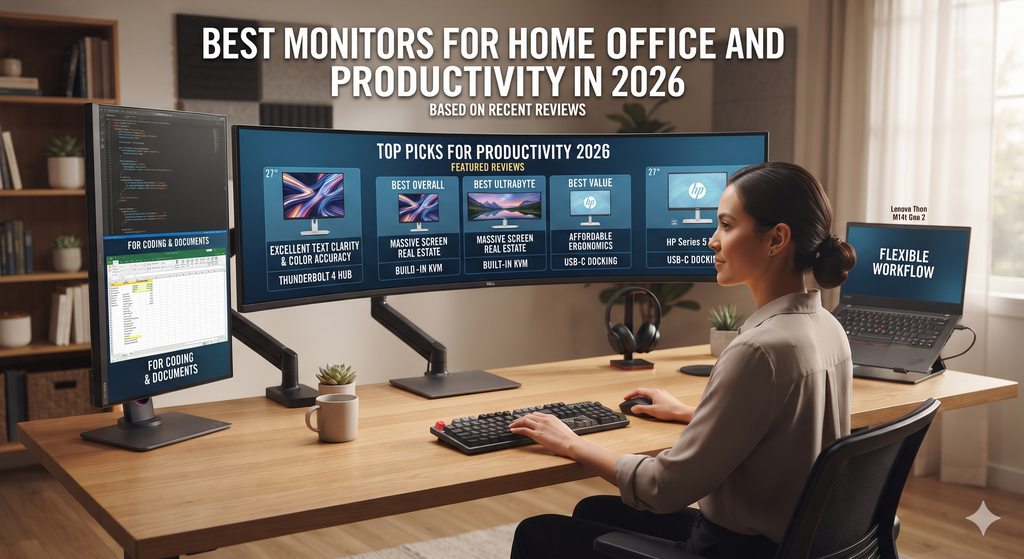
Choosing the best home office monitors in 2026 can make a big difference to productivity, comfort and everyday work. Whether you need a 4K display for professional work, an ultrawide monitor for multitasking or an affordable screen for everyday tasks, this guide compares the top options.
Finding the best productivity monitors can make a significant difference to your home office, remote work setup and everyday productivity. The right monitor gives you enough screen space, clear visuals and useful features for comfortable multitasking.
When comparing the best productivity monitors, consider screen size, resolution, panel quality, connectivity and ergonomic adjustments. These features can help you choose a display that suits your daily workload and workspace.
But with so many options available, choosing the right display isn’t always easy. Should you buy a 24-inch Full HD monitor, a 27-inch 4K display or a large ultrawide screen? Is USB-C worth paying extra for? And do you really need a high refresh rate for office work?
In this guide, we’ll explore some of the best monitors to consider for home office and productivity in 2026, explain their strengths and limitations, and help you choose the right display for your budget and workspace.
Affiliate disclosure: This article contains affiliate links. As an Amazon Associate, MindOfHe may earn from qualifying purchases at no additional cost to you. Product availability and prices can change.
Table of Contents
Best Productivity Monitors in 2026: Quick Comparison
| Monitor | Best For | Key Feature | Check Price |
|---|---|---|---|
| Dell UltraSharp U2725QE | Premium productivity | 27-inch 4K and Thunderbolt connectivity | View on Amazon → |
| ASUS ProArt PA279CRV | Creative professionals | 4K resolution and color-focused features | View on Amazon → |
| Acer Vero B247Y G | Budget office setup | Practical everyday productivity | View on Amazon → |
| Dell UltraSharp U3225QE | Premium large display | 31.5-inch 4K and extensive connectivity | View on Amazon → |
| Dell UltraSharp U3425WE | Multitasking | 34-inch ultrawide workspace | View on Amazon → |
Want to understand how computer monitors work, including display technologies and common connection types? Read this computer monitor guide on Wikipedia for additional background.
These are models worth comparing for different needs, rather than a claim that every model is the best choice for every buyer. Check the current specifications, compatibility and price before purchasing. Choosing among the best productivity monitors depends on your budget, desk space and the type of work you perform every day.
1. Dell UltraSharp U2725QE – Premium Monitor for Productivity
The Dell UltraSharp U2725QE is a premium 27-inch monitor worth considering if you want a sharp display with advanced connectivity for a modern home office.
Its 4K resolution provides detailed text and workspace clarity. The monitor also offers a USB hub and Thunderbolt connectivity, making it useful for people who connect laptops and other accessories to their desk setup.
Why consider it?
- 27-inch 4K display
- Thunderbolt 4 connectivity
- USB hub for compatible peripherals
- High refresh rate compared with traditional 60Hz office displays
- Professional design for office environments
Potential drawbacks:
- Premium pricing
- Some features may be unnecessary for basic office work
- No monitor can replace a proper ergonomic desk setup
Best for: Professionals, developers and remote workers who want a premium monitor with laptop connectivity.
2. ASUS ProArt PA279CRV – Best for Creative Work
If your work involves photography, graphic design, video editing or content creation, display quality and color reproduction become especially important.
The ASUS ProArt PA279CRV is a 27-inch 4K monitor designed with creative workflows in mind. Its wide color gamut and USB-C connectivity make it an option worth comparing for creators who also use laptops.
Why consider it?
- 27-inch 4K resolution
- Color-focused display features
- USB-C connectivity with up to 96W power delivery
- Multiple connectivity options
- Suitable for design and creative workflows
Potential drawbacks:
- More expensive than basic office displays
- HDR performance is not its main strength
- Professional users may still need to calibrate their display for demanding work
Best for: Designers, photographers, video editors and digital creators.
3. Acer Vero B247Y G – Budget-Friendly Office Monitor
Not everyone needs an expensive 4K display. If your main tasks involve documents, spreadsheets, browsing, email and video meetings, a practical Full HD office monitor may be sufficient.
The Acer Vero B247Y G is a budget-oriented option to compare when building an affordable workstation.
Why consider it?
- Practical Full HD office display
- Ergonomic stand features
- Everyday productivity performance
- More affordable positioning than premium professional monitors
Potential drawbacks:
- Lower resolution than 1440p and 4K alternatives
- Limited connectivity compared with premium monitors
- Not intended for demanding professional color work
Best for: Students, general office users and people building an affordable home workspace.
4. Dell UltraSharp U3225QE – Best for a Larger 4K Workspace
If you regularly work with multiple windows, spreadsheets, documents and browser tabs, a larger display can make multitasking more convenient.
The Dell UltraSharp U3225QE offers a 31.5-inch 4K screen and advanced connectivity. Its larger workspace can be useful for professionals who prefer one large monitor instead of multiple smaller displays.
Why consider it?
- 31.5-inch 4K display
- IPS Black panel technology
- 120Hz refresh rate
- Thunderbolt 4 and USB connectivity
- Up to 140W USB-C power delivery
Potential drawbacks:
- Expensive compared with standard office monitors
- Requires more desk space
- Built-in speakers are not included
Best for: Professionals, analysts and multitaskers who want a large premium display.
5. Dell UltraSharp U3425WE – Best Ultrawide Monitor for Multitasking
An ultrawide monitor provides more horizontal screen space than a traditional 16:9 display.
The Dell UltraSharp U3425WE is a 34-inch ultrawide option worth considering if you regularly work with multiple applications side by side.
You can keep a document open alongside a browser, spreadsheet or communication application without constantly switching between windows.
Why consider it?
- 34-inch ultrawide screen
- 3440 × 1440 resolution
- Thunderbolt connectivity
- Integrated USB hub
- Productivity-oriented multitasking features
Potential drawbacks:
- Requires a wider desk
- More expensive than standard office monitors
- Not every application benefits from an ultrawide aspect ratio
Best for: Developers, analysts, remote workers and professionals who frequently multitask.
How to Choose the Best Monitor for Your Home Office
Before purchasing a monitor, consider the following specifications.
1. Choose the Right Screen Size
Screen size affects how much content you can comfortably view at once.
- 24 inches: Suitable for basic office work and smaller desks.
- 27 inches: A versatile size for most home offices.
- 32 inches: Useful for larger workspaces and multitasking.
- 34 inches ultrawide: Suitable for people who frequently use multiple applications side by side.
For most users, a 27-inch display is a practical starting point.
2. Understand Monitor Resolution
Resolution determines the number of pixels displayed on the screen.
| Resolution | Common Use |
|---|---|
| Full HD (1920 × 1080) | Basic office work and budget setups |
| QHD (2560 × 1440) | Productivity and multitasking |
| 4K UHD (3840 × 2160) | Sharp text, detailed images and creative work |
| 5K and above | Specialized professional workflows |
A 27-inch QHD monitor offers a useful balance between sharpness and cost. If your budget allows, 27-inch 4K is worth considering for detailed work.
3. Understand Panel Types
Monitor panels affect viewing angles, contrast and image quality.
IPS: Usually a good choice for office work because of its viewing angles and consistent colors.
VA: Often provides stronger contrast, which can be useful for watching videos and working in darker environments.
OLED: Offers excellent contrast and deep blacks, but can be expensive. Consider burn-in risk if displaying static applications for long periods.
For a typical home office, IPS is a sensible starting point.
4. Check USB-C and Power Delivery
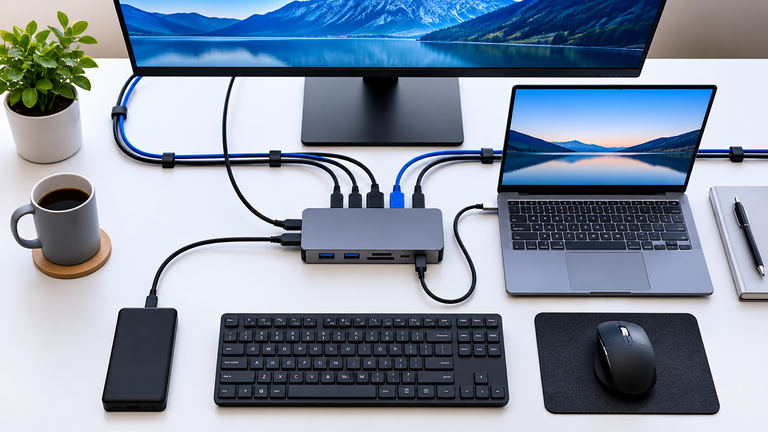
USB-C connectivity can simplify your desk setup.
A compatible monitor may allow you to connect your laptop using one cable for:
- Display output
- Data transfer
- USB peripheral connections
- Laptop charging
Check the monitor’s power delivery rating and your laptop’s chargin
Still Looking for the Right Laptop?
Use our Laptop Finder to discover laptops that match your budget, work requirements and preferences.
Find Your Perfect Laptop →